


Working with a Remote Screen window
Anyplace Control
| Table Of Contents Previous Next |
|
|
| The Remote Screen Window is the primary interface for interacting with a remote PC. Each Host PC has its own Remote Screen Window in real time. You can control a remote screen with your keyboard and mouse using the Control Mode.
|
| You may transfer various types of data (text, graphics, etc.) between computers using the Clipboard Transfer feature.
|
| The Power Management feature allows you to log off or shut down a Host PC.
|
| You can also have many Remote Screen Windows opened simultaneously. You may choose to tile these windows horizontally, vertically or to even cascade them through the "Window" menu commands in the Main Window.
|
|
|
|
|
|
|

Remote Screen window toolbar.
| Toolbar contains buttons to perform next features:
|
| · | Full screen
|
| · | Scale to fit
|
| · | Full control mode
|
| · | View-Only mode
|
| · | File transfer
|
| · | Clipboard transfer
|
| · | Send Clipboard
|
| · | Receive Clipboard
|
| · | Power Management
|
| · | Shutdown
|
| · | Restart
|
| · | Log off
|
| · | Blank Monitor, Lock Keyboard
|
| · | Send keystroke
|
| · | Ctrl+Alt+Del
|
| · | Ctrl+Shift+Esc (Task manager)
|
| · | Scroll lock
|
| · | Settings
|
Clipboard Transfer.
| Anyplace Control allows you to transfer data between computers. Using Clipboard Transfer feature you will be able to transfer any data that can be copied to the clipboard, (with the exception files), like text or graphics. Read more about it here...
|
| For transferring files, please, use the "File Transfer" feature.
|
Blank remote monitor, lock remote mouse and keyboard.
This feature can be used for hidden monitoring. Users usually do feel uneasy when they see their mouse-pointer moving on its own. However, with the "blank monitor" option, system administrators can now easily perform repairs remotely without a making remote users uncomfortable. Read more...
Send Keystroke.
| By using the keystroke button you can send a Ctrl+Alt+Del, Ctrl+Shit+Esc (in order to bring forth the Task manager on a remote PC), etc.
|
Settings.
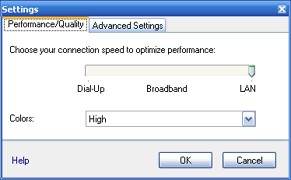
Remote Screen Settings window
| The button "Settings" opens a dialog box, where you can customize the performance/quality parameters.
|
|
|
| Performance/Quality tab
|
|
|
| · | Connection speed.
|
| If your network capacity is slow, it is recommended that you choose the Dial-Up connection type. When you connect via LAN, scroll down to the LAN option and select it.
|
|
|
| · | Colors
|
| In case of a low channel capability (Dial-Up) you should use the Low colors setting (4 bit). This option does speed up the performance yet it also makes the screen look unsightly. To view a remote screen in LAN with full colors, set the colors parameter to High (16 bit). The average color parameter is 8 bit.
|
|
|
| Advanced Settings tab
|
|
|
| · | "Remove wallpaper"
|
| Choosing this option will remove the wallpaper on the remote PC desktop. This will speed up the performance of the software.
|
|
|
| · | "Reduce FPS to release CPU"
|
| By using this option, you can choose the frequency rate in which the screen refreshes per second.
|
| Slowing the refresh rates will decrease the remote CPU load.
|
|
|
|
|
|
|


