Select language: English  German  French  Spanish  Russian  Portuguese 
Overview Features Download Buy Support About


Anyplace Control


  Version:
  Release:
  Size:
  Price:
4.5.0.0
25.04.2008
3.2M
from 38.95$
Download Buy now!

Product Info


Topics


Resources


Remote Control & Monitoring


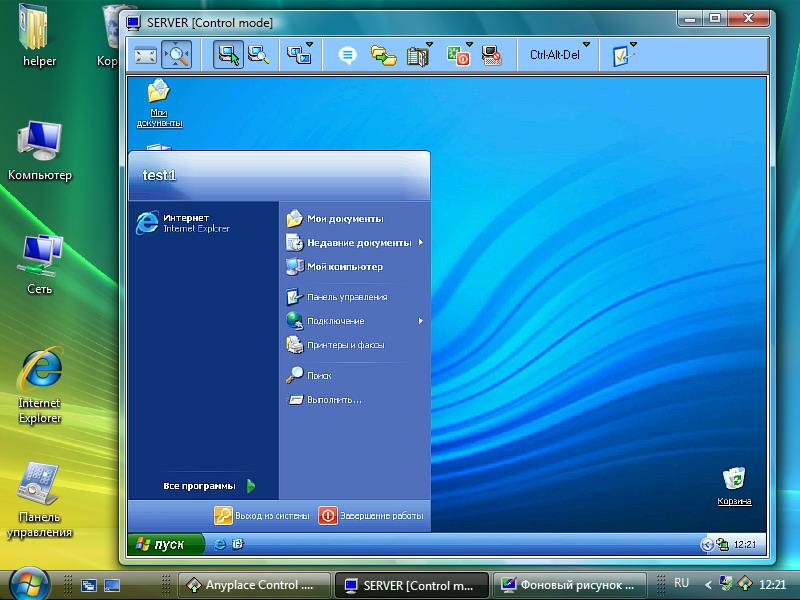
Anyplace Control displays remote computer desktops in separate "Remote Screen" windows.
The Remote Screen window is the primary interface for interacting with a remote computer. In this window, you can control a remote desktop with your keyboard and mouse. Several Remote Screen windows can be opened at the same time; thus, you can monitor multiple computers simultaneously. You can arrange those windows on your desktop as you want, or you can minimize them to the system tray.

Remote Screen Windows on your desktop

Watch demo: Remote Control in use...

Remote Desktop Operating Modes

There are two operating modes available to a remote desktop (you can toggle between the two modes):

  1. View mode.
  2. Control mode.

The View mode allows the viewing of a remote desktop (without the capability to control it.) You will be able to see the remote desktop and remote mouse cursor in real time. This mode allows seeing what is happening on a remote computer and what a remote user is doing.

When in the Control mode, you can control a remote desktop with your keyboard and mouse

Remote Desktop Displaying Modes

There are two ways a remote desktop can be presented on your screen:

  1. Full-Screen
  2. Window

The Full-Screen mode allows viewing of the remote desktop on the entire width and height of your monitor screen, while the Window mode places the remote desktop in a window.

"Scale to Fit" and "Autoscroll" Features

When a remote computer's desktop is larger than its Remote Screen window, the program can scale the remote desktop image to fit the window. This way, you will see the remote desktop in full, in a reduced scale.

However, if you don't use the auto-scale mode, you can use scrollbars in the Remote Screen window to navigate across the remote desktop. With the autoscroll feature, you won't need to click on the scrollbars manually. A large remote desktop image will be automatically scrolled when you move your mouse to any edge of the Remote Screen window.

Supports Different Resolutions & Color Depths

Anyplace Control supports all screen resolutions with color depths ranging from 4 through 32 bits. By default, the program applies the color depth that provides the highest screenshot refresh rate in networks with high bandwidth (the rate depends on your video system.) Certainly, you can also set the quality of the transmitted picture manually. If your network bandwidth is low, you can set for it lower color depth and thus speed up the program's performance (this way, less image data will travel over the network.)

Toolbar for Remote Screen Window

The Remote Screen window contains a convenient toolbar, which allows quick access to the most frequently used actions needed for remote control.  For example, change color depth, send special keystrokes, transfer clipboard content between local and remote computers, etc.

keywords: free pc remote control software download, and remote control windows. How to file transfer software or transfer beam file between computers via remote desktop control software and easy remote access? remote desktop control. Remote control computer. Both remote assistance software and Remote Access Computer

PRODUCT NEWS
your e-mail address
 

Take part in 11-questions survey and get
10% DISCOUNT
on purchase of any product!

Click here to start


Overview Features Download Buy Support About
   Contact us    Site Map
Copyright © 2002-2008 Anyplace Control Software