

Address Book
Anyplace Control
| Table Of Contents Previous Next |
|
|
| The Address Book contains the shortcuts to the remote PCs. Each connection mode ("IP-address Connection", "Online Account Connection" and "Computer ID Connection") has a separate address book.
|
|
|
| To execute a task on a remote computer or a group of remote PCs (e.g. connection), select the target computers with the mouse and Shift/Ctrl keys (by analogue with choosing a group of files in Explorer) and execute one of the commands listed in the "Actions" menu (or use the toolbar buttons).
|
|
|
| For quick access to frequently used commands, you can use the pop-up menu (right mouse button click in Address Book).
|
|
|
| Computers may be organized into groups. This feature often simplifies the search for a required computer in the Address Book. Use the "View / Show Groups" command menu to show/hide the "groups" panel in the Address Book. In the "Groups" panel you can find buttons to create or delete groups. You can also move computers from one group to another.
|
"IP-address Connection" address book.
| Use the "Add new PC" button to add a new computer to the Address Book.
|
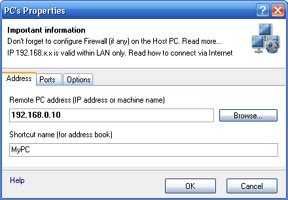
| After clicking the button, you will see a dialog box (see picture below), where you will have to fill in the necessary fields. After filling in the information, click the "OK" button. A new computer shortcut will appear in your Address Book.
|
|
|
|
|
|
The "Add new PC" feature has 3 tabs: Address, Ports and Options.
|
|
|
| 1) "Address" tab
|
| This tab enables you to enter an IP address of target PC or its DNS name ("Remote PC address..." line) and its nickname for the Address Book ("Shortcut name" line).
|
|
|
| The «Browse» button allows you to add a target PC from your Network Places into your Address Book. If the Host Module hasn't been installed on the target PC yet, click on the "Install Host Module remotely" button.
|
| You can also determine which PCs in your LAN have already been installed Host Modules, by simply clicking on "Search for PCs with Host Module started".
|
|
|
| 2) "Ports" tab
|
| In this tab you can change the port values for connection to the Host PC. By default, the main port value is 5279 and File Transfer port value is 4279. To change any port values, you have to uncheck the "Use default value" check box and enter a new port value.
|
|
|
| 3) "Options" tab
|
| · | "Blank remote monitor, lock mouse & keyboard" function is very useful for remote control in a Hidden Mode. You can check one of the following disable parameters: "Immediately after the connection" or "During remote screen control session".
|
| · | Check "Use saved password to connect" option if you don't wish to enter your password every time you connect to the remote Host. It is stored in an encrypted way (read more in Security chapter)
|
"Online Account Connection" address book.
| When using the Online Account Connection mode, there is no need to add any of the PCs into your list. Since this process is already automated, your Online Account PCs will automatically appear in your Address Book after the Admin Module starts.
|
|
|
| "Refresh" button serves for checking the recently added PCs into Account.
|
| Use "Refresh" button from time to time to refresh your Address Book and check whether your Account PCs are online/offline.
|
|
|
| "Options" button is used to manage your Online Account (change Online Account, modify Account properties, view Account information, etc).
|


